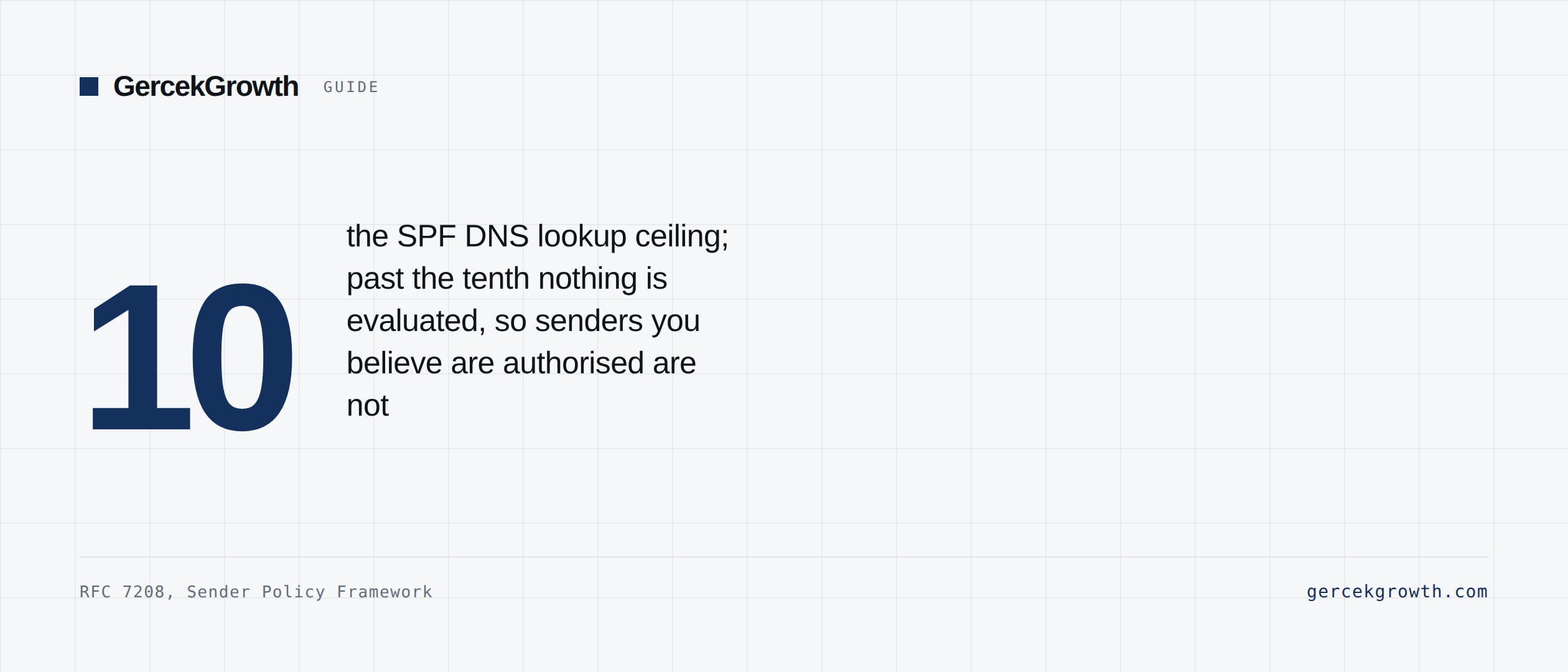
Short answer: If campaign results are poor, the problem may be authentication rather than the message. The three do different jobs: SPF lists which servers may send for your domain, DKIM signs outgoing mail so the receiver can prove it was authorised and untampered, and DMARC tells receivers what to do when the first two fail and reports back to you. The setup order follows: inventory first, then SPF, then DKIM, then DMARC in monitoring mode. The detail missed most often is SPF's 10 DNS lookup ceiling; nothing past the tenth is evaluated, and it breaks silently.
Why authentication decides the outcome
Inbox providers ask one question of every message: is this email really allowed to come from this domain? When the answer is unclear the mail is delayed, filed as spam, or refused outright. On the B2B side that touches deliverability, sender reputation, domain security, campaign results and compliance with the large providers.
This is no longer good practice, it is a check at the door. Per Google's official documentation, since 1 February 2024 all senders need SPF or DKIM, and anyone sending 5,000 or more messages a day needs all three.
What SPF is
A DNS TXT record listing which servers may send email for your domain. It is not sufficient on its own because it breaks on forwarding. Four rules:
- One record per domain. Two records is invalid.
- Include every service that legitimately sends for you.
- Remove services you no longer use.
- Stay under the 10 DNS lookup ceiling. RFC 7208 sets it, and each of `include:`, `a`, `mx`, `ptr`, `exists:` and `redirect=` spends a lookup.
What DKIM is
It adds a digital signature to outgoing mail. The receiver validates the signature against a public key published in your DNS, proving both that the send was authorised and that the message was not altered in transit. This is the mechanism that survives forwarding where SPF does not. Use 2048-bit keys where available.
What DMARC is
It sits on top of SPF and DKIM and does two things: it tells receivers what to do when authentication fails, and it reports back to the domain owner. Three policy levels: `p=none` is monitoring only, `p=quarantine` sends failing mail to spam, `p=reject` refuses it. Most organisations start at monitoring, but a domain left at `p=none` for months is not protected.
Domain alignment
The concept skipped most often. Alignment means the From domain the recipient sees matches the domain that SPF or DKIM authenticated. With all three records in place but no alignment, DMARC still fails. Google requires explicitly that at least one of SPF or DKIM aligns with the From header for bulk senders.
The order to set it up
- 1. Take an inventory. List every platform that sends email on your behalf. A single missed tool is the hardest error to find later.
- 2. Consolidate the SPF record. Bring every service into one record and count the lookups.
- 3. Enable DKIM on each service. Each platform uses its own selector; note which selector belongs to which tool.
- 4. Publish DMARC at `p=none` with an `rua` address. Do not tighten before reports start arriving.
- 5. Test. Confirm the SPF, DKIM and DMARC results and the alignment in the message headers.
The nine mistakes made most often
- Leaving more than one SPF record on the domain.
- Forgetting a retired tool that is still in the record.
- Never enabling DKIM on one of the platforms.
- Exceeding the 10 DNS lookup ceiling without noticing.
- Moving DMARC to `reject` before reports arrive, and cutting legitimate mail.
- Omitting the `rua` address, so no report is ever seen.
- Not checking alignment: all three records correct, DMARC still failing.
- Sending cold email from the main domain instead of a separate sending domain.
- Publishing the records and never watching engagement metrics.
Setup alone is not enough
Authentication is the precondition for reaching the inbox, not a guarantee of it. A correctly configured domain still lands in spam with a poor list and an irrelevant message. Once the records are right, the next work is list quality, volume management and content; the full list is in the deliverability checklist.
To see where your domain stands right now, the SPF, DKIM and DMARC checker queries live DNS and reads the result back in plain language.
Sources
- Email sender guidelinesGoogle Workspace Yönetici Yardımı, resmî doküman
- 2026 bulk email sender requirements: Microsoft, Google, and Yahoo compliance guideRed Sift, 2026
- RFC 7208: Sender Policy Framework (SPF) for Authorizing Use of Domains in EmailIETF, 2014
- RFC 8058: Signaling One-Click Functionality for List Email HeadersIETF, 2017
Every figure above is linked to its primary source and dated. Where a number is asserted by a source rather than measured, the text says so. If you find something out of date, tell me and I will correct it.